Windows 10 Update Breaks the Start Menu.. Here's the Fix
A Critical Error Hitting Windows 10 After the Latest Update and How I Fixed It — How to fix Your Start menu isn’t working
Fixing the "Your Start Menu Isn’t Working" Error in Windows 10 After the Latest Update Using the Registry
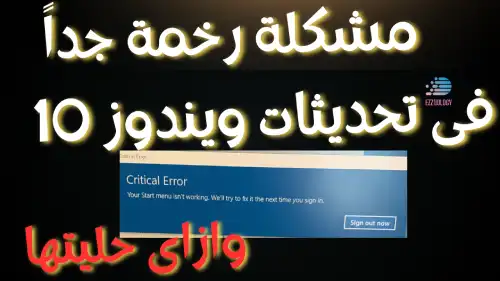
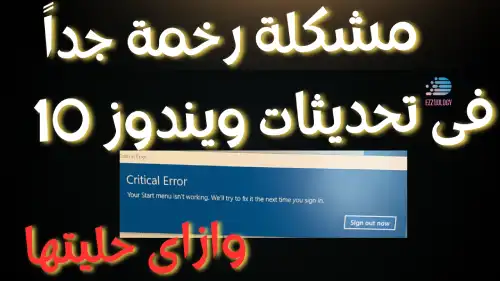
Some Windows 10 users are experiencing the “Your Start Menu Isn’t Working” error after the latest update, which causes the Start Menu to become unresponsive when clicked, preventing normal use of the computer. In this article, we will review the causes of the problem and how to fix it using the Registry Editor by deleting the corrupted user files causing the issue.
Causes of the “Your Start Menu Isn’t Working” Error in Windows 10
1️⃣ Incompatible Updates: Some recent Windows 10 updates may cause conflicts with system files.
2️⃣ Corrupted User Files: Some user-specific settings may be corrupted, preventing the Start Menu from working.
3️⃣ Registry Issues: Corrupted entries in the Registry Editor may affect the user interface from running.
4️⃣ Software Conflicts: Some installed applications may interfere with the Start Menu's operation.
How to Fix the Problem Using the Registry Editor
📌 Warning: Modifying the Registry may affect the system, so it is recommended to create a backup of the Registry before applying these steps.
🔹 Step 1: Open Registry Editor
1️⃣ Press Ctrl + Shift + Esc to open Task Manager.
2️⃣ Click on File then Run new task.
3️⃣ Type regedit and press Enter.
4️⃣ If a "User Account Control" prompt appears, click Yes to confirm.
🔹 Step 2: Delete the Corrupted User Files
1️⃣ Navigate to the following path inside the Registry:
HKEY_CURRENT_USER\Software\Microsoft\Windows\CurrentVersion\Explorer\Advanced
2️⃣ Look for the value EnableXamlStartMenu (if it exists).
3️⃣ Right-click on it and choose Delete.
4️⃣ Navigate to the following path:
HKEY_CURRENT_USER\Software\Microsoft\Windows\CurrentVersion\Explorer\StartPage
5️⃣ Delete all keys related to the Start Menu settings.
🔹 Step 3: Restart Windows Explorer (Explorer.exe)
1️⃣ Press Ctrl + Shift + Esc to open Task Manager.
2️⃣ Find Windows Explorer and right-click on it.
3️⃣ Choose Restart to restart it.
🔹 Step 4: Restart Your Computer
After completing the steps above, restart your computer and check whether the problem has been fixed.
Additional Methods to Fix the Problem
If the problem is not resolved using the Registry, try the following solutions:
✅ Create a New User Account
- Go to Settings → Accounts → Family & Other Users.
- Click Add a new user and create a new account to test the Start Menu.
✅ Reinstall Default Apps
- Open Windows PowerShell as Administrator (Admin).
- Type the following command and press Enter:
pgsql
Get-AppXPackage -AllUsers | Foreach {Add-AppxPackage -DisableDevelopmentMode -Register "$($_.InstallLocation)\AppXManifest.xml"}
✅ Run a System File Scan and Repair
- Open Command Prompt as Administrator.
- Run the following commands one at a time:
bash
sfc /scannow

DISM /Online /Cleanup-Image /RestoreHealth
Finally
The “Your Start Menu Isn’t Working” error in Windows 10 can occur after the latest update due to corrupted files in the system or user settings. Using the Registry Editor, the corrupted keys can be deleted to restore the Start Menu. If the fix does not work, you can try creating a new user account or reinstalling the default apps.
And here, dear brothers and sisters, we have successfully completed the mission ✌
Send blessings upon the Prophet, let your hearts be at peace, and do good no matter how small 🎯🌷
And don't forget our brothers and sisters everywhere in your prayers 📌
Greetings from the #Ezznology #Ezz_Technology team
You can also browse our store's products from here 👈#our store 🌷 or here
To join our family on the Telegram group click 👈here
And also the Facebook group where we share information and help members 👈here


Other topics that may interest you:
Does Artificial Intelligence Enhance Our Abilities or Weaken Them — Will It Make Humans Stupid?!
The Fate of Search Engines in the Age of Artificial Intelligence Models
Everything You're Looking for in a Single AI Model — Claude Sonnet 3.7
Grok 3 Free for a Limited Time as Announced by Elon Musk
If You Receive This Message on Telegram, Never Interact With It