How to resolve the virtual machine not starting issue: intel VT-x is disabled – VMware
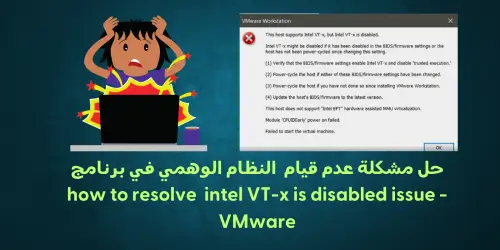
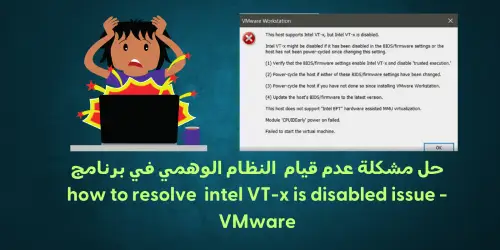
Fixing the virtual machine not starting issue in VMware: the “Intel VT-x is Disabled” error message
The error message “Intel VT-x is Disabled” appears when the Intel Virtualization Technology option is not enabled, which prevents you from running the virtual machine. In this article, we will give you simple steps to solve this problem, especially if your device's BIOS version is old.
Steps to solve the problem
- Entering the BIOS window:
- Start by turning on the computer and press the key (F10 or F12) to enter the BIOS settings. The key may vary depending on the type of computer.
- Selecting the Intel option:
- Look for the Configuration or Advanced Settings tab, then go to the Intel Virtualization Technology option and change it to Enable.
- Saving changes and exiting:
- After enabling the option, save the changes by pressing the (F10) key, then choose the exit option.
- Running the program:
- After restarting the computer, run the VMware program again. You should notice that the problem has been solved and the error message has disappeared.
Additional notes
Modern CPUs contain virtualization features that help accelerate virtual machines, such as those you use in VirtualBox, VMware, and Hyper-V. However, it should be noted that these features are not always enabled by default, so it is important to check the BIOS settings when encountering such problems.
By following the steps mentioned above, you can easily enable Intel VT-x technology and solve the problem you are facing.
Understanding virtual machines and solving hardware acceleration problems
Virtual machines are great tools that allow you to run complete operating systems in a window on your current system. Through virtualization applications, you can try different operating systems, test applications in a safe environment, and experiment with new features without worry. However, these applications need the hardware acceleration features found in modern CPUs to work properly. For Intel CPUs, this refers to enabling Intel VT-x technology, while for AMD units, it refers to enabling AMD-V.
Common error messages
While using virtualization applications, you may encounter several error messages, such as:
- “VT-x / AMD-V hardware acceleration is not available on your system”
- “This host supports Intel VT-x, but Intel VT-x is disabled”
- “The processor on this computer is not compatible with Hyper-V”
Causes of the errors
These errors can appear for several reasons, including:
- Hardware acceleration feature being disabled:
- On systems with Intel CPUs, the Intel VT-x feature may be disabled through the BIOS or UEFI setting. This feature is often disabled by default on new computers.
- As for AMD CPUs, this is not an issue, as the AMD-V feature is always enabled without the need for any settings to change it.
- Hyper-V interfering with other applications:
- If you are using virtualization applications such as VMware or VirtualBox while you have Hyper-V installed, Hyper-V will occupy the hardware acceleration features, preventing other applications from accessing them.
Troubleshooting steps
To fix these problems, you can follow these steps:
- Enable VT-x or AMD-V in BIOS/UEFI:
- Enter the BIOS or UEFI settings and make sure the hardware acceleration option (VT-x or AMD-V) is enabled.
- Disable Hyper-V:
- If you do not need Hyper-V, you can disable it through “Programs and Features settings” in Windows. Look for “Turn Windows features on or off” and uncheck Hyper-V.
By following these steps, you can solve hardware acceleration problems and restore the ability to run virtualization applications smoothly.
If you have Hyper-V installed, it may prevent other virtualization applications from accessing hardware acceleration features. This commonly happens with Intel VT-x, but it can also sometimes happen with AMD-V. If you are facing error messages indicating that Intel VT-x (or AMD-V) is not available, even though it is enabled on your computer, this may be the problem
Setting up BIOS for virtualization
Since Access Commander works in a virtual environment, the BIOS settings on your computer must be configured to allow virtualization technology. Access to the BIOS varies from one manufacturer to another, and the same manufacturer may apply different versions of BIOS depending on the age or model of the computer.
How to access the BIOS
Most computers provide a notification to press a button or combination of buttons to “enter setup” during the first few seconds after turning on the computer. You should do this before the operating system starts loading.
- On some devices, this button or combination will take you directly to the BIOS settings.
- On other devices, you may encounter a “setup menu” that includes an option to enter the BIOS.
If your computer does not offer any options to access the BIOS before the operating system loads, it is likely using UEFI instead. Please continue reading for more information on how to access UEFI on your device.
List of the most popular manufacturers and how to access BIOS settings
Acer
- Most common: F2 or Delete.
- On older devices: F1 or the key combination CTRL + ALT + ESC.
Steps:
- Turn on the system.
- Press the F2 key when the BIOS starts up.
- Press the right arrow key to enter the “System Configuration” tab, then choose “Virtualization Technology” and press the Enter key.
- Choose “Enabled” and press Enter.
- Press the F10 key, then choose “Yes” and press Enter to save the changes and restart Windows.
Asus
- Most common: F2.
- Alternatively: Delete or Insert, and less commonly F10.
Steps:
- Turn on the system.
- Press the F2 key when the BIOS starts up.
- Press the right arrow key to enter the “Advanced” tab, choose “Virtualization Technology” and press Enter.
- Choose “Enabled” and press Enter.
- Press the F10 key, then choose “Yes” and press Enter to save the changes and restart Windows.
DELL
- Newer models: Press the F2 key while the Dell logo appears on the screen.
- Alternatively: F1, Delete, F12, or F3.
- Older models: CTRL + ALT + ENTER or Delete or Fn + ESC or Fn + F1.
Steps:
- Turn on the system.
- Press the F2 key when the BIOS starts up.
- Press the right arrow key to enter the “Advanced” tab, choose “Virtualization” and press Enter.
- Choose “Enabled” and press Enter.
- Press the F10 key, then choose “Yes” and press Enter to save the changes and restart Windows.
HP
- Most common keys: F10 or ESC.
- Alternatives: F1, F2, F6, or F11.
- On HP Tablet devices: F10 or F12.
Steps to access the BIOS:
- Turn on the system.
- Repeatedly press the Esc key at startup.
- Press the F10 key to enter the BIOS settings.
- Use the right arrow to navigate to the “System Configuration” tab, choose “Virtualization Technology” then press Enter.
- Choose “Enabled” and press Enter.
- Press the F10 key and choose “Yes” then press Enter to save the changes and restart.
Lenovo
- Most common keys: F1 or F2.
- Older devices: the key combination CTRL + ALT + F3 or CTRL + ALT + INS or Fn + F1.
Enabling VT-x on ThinkPad devices:
- Turn on the system.
- Press Enter or tap the touch screen during the Lenovo startup screen.
- Press F1 to enter the BIOS settings.
- Navigate to the “Security” tab, then press Enter on “Virtualization”.
- Choose “Intel(R) Virtualization Technology”, press Enter, choose “Enabled” and press Enter.
- Press F10.
- Press Enter on “Yes” to save the settings and restart.
Enabling VT-x on ThinkCentre devices (desktops):
- Turn on the system.
- Press Enter during the Lenovo startup screen.
- Press F1 to enter the BIOS settings.
- Navigate to the “Advanced” tab and press Enter on “CPU Setup”.
- Choose “Intel(R) Virtualization Technology”, press Enter, choose “Enabled” and press Enter.
- Press F10.
- Press Enter on “Yes” to save the settings and restart.
Sony
- Sony VAIO: F2 or F3.
- Alternatives: F1.
Steps to access the BIOS:
- With the computer completely turned off, press and hold the Assist button until the black VAIO screen appears.
Note: the location of the Assist button varies depending on the computer model.
- On the VAIOCare | Rescue Mode screen, press the down arrow until the “Start BIOS setup [F2]” option is highlighted and press Enter.
- On the [BIOS name] setup screen, press the right arrow until the “Advanced” tab is selected.
- On the “Advanced” tab, press the down arrow until “Intel(R) Virtualization Technology” is selected, then press Enter.
- Use the arrow keys to choose “Enabled”, then press Enter.
- Press the right arrow until the “Exit” tab is selected.
- Press the down arrow until “Exit Setup” is selected, then press Enter.
- On the save screen, verify that “Yes” is selected, then press Enter.
Toshiba
- Most common keys: F2.
- Alternatives: F1 and ESC.
- Toshiba Equium: F12.
Steps to access the BIOS:
- Turn on the system.
- Press the F2 key when the BIOS starts up.
- Press the right arrow to navigate to the “Advanced” tab, choose “Virtualization Technology” then press Enter.
- Choose “Enabled” and press Enter.
- Press the F10 key and choose “Yes” then press Enter to save the changes and restart.
Additional notes
The steps may vary required to enable virtualization depending on your device's BIOS version. If this is the case, look for options with names such as “Virtualization Technology” or “Intel® Virtualization Technology” under the “Processor Configuration”, “System Configuration”, “Advanced”, “Security”, or “Processor” tabs.
If you have enabled these settings within the BIOS and still see error messages from the virtualization software referring to VT-X or AMD-V, it may be necessary to disable Hyper-V on the computer. You can do this through:
- Going to Control Panel -> Programs -> Programs and Features -> clicking Turn Windows features on or off -> unchecking Hyper-V -> clicking OK.
Accessing UEFI
On UEFI-based computers, there is often no notification to press a button before the operating system loads. Instead, you can access these settings from within the operating system. On Windows, press and hold the Shift key while clicking Restart to access this menu directly. To access the UEFI Firmware settings, click on the Troubleshoot option, then choose Advanced Options, and select UEFI Firmware Settings. After that, click on the Restart option and the computer will restart into the UEFI settings screen.
And here, my dear friend, we have successfully completed the mission ✌
Do not forget your brothers in Palestine in your prayers
Best regards from the #Ezznology team
Find what interests you on 👈#our store
And you can become a member of our family by joining the Telegram group from👈here
Or the Facebook group from👈here


Others were also interested in:
How to create your resume on Wikipedia
The top 6 methods and tips for managing change effectively
How to create a page in your name or your business name on Wikipedia to achieve fame
What is Change Management?
What do Clustering Servers mean?
The top 10 companies for order delivery and shipping in Egypt
Ezznology عز التقنية
Writer at Ezznology عز التقنية — sharing the best tech articles and tutorials.
Rate this article
💬 Comments 0
No comments yet — be the first to comment!