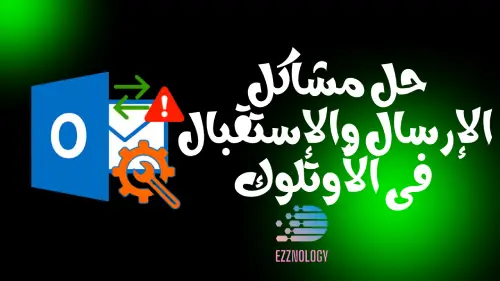
How to Solve Send and Receive Problems in Outlook
how to solve send and receive Outlook message issues
Fixing Send and Receive Errors in Microsoft Outlook
If you are facing problems sending or receiving email using Microsoft Outlook, there are several steps you can follow to fix these errors. Here are some common solutions:
- Check your internet connection: Make sure you are connected to the internet. Connection problems can be the main reason for being unable to send or receive messages.
- Restart Outlook: Sometimes, restarting the program can resolve temporary problems. Close Outlook and then open it again.
- Check account settings: Make sure your email account settings are correct. You can verify the server settings, such as SMTP and POP3 or IMAP, in addition to the username and password.
- Update Outlook: Make sure you are using the latest version of Outlook. Updates may include fixes for errors that could affect the application's performance.
- Remove large items: If you have very large emails in your inbox or other folders, try deleting or moving them. Large files can cause problems with sending and receiving.
- Rebuild the data file (PST): If you use a personal data file (PST), you can use the built-in ScanPST.exe tool to repair it. This tool can help address errors in the file.
- Disable add-ins: Some add-ins may cause Outlook to malfunction. Try running the program in safe mode to disable add-ins, then identify the add-in that may be causing the problem.
- Firewall and antivirus settings: Make sure your firewall or antivirus program is not preventing Outlook from connecting to the internet.
By applying these steps, you should be able to fix send and receive errors in Microsoft Outlook. If the problems persist, you may need to contact Microsoft support for further assistance.
Send and Receive Errors in Microsoft Outlook: Causes and Solutions
One of the most common errors in Microsoft Outlook is the “send and receive error”. When encountered, it causes all user activity to stop, so resolving it as quickly as possible through proven techniques is essential. And if the common solutions fail to correct the problem, repairing the PST file in Outlook is the ultimate solution.
Although MS Outlook supports many functions such as calendar, notes, journals, and contact management, it is primarily an email client mainly used for sending and receiving messages by millions of users around the world. Just as every coin has two faces, if Outlook is feature-rich, it often faces recurring problems that can completely disrupt the user's activity. Among these common problems are “send and receive errors”.
In this article, we will highlight the most common errors related to sending and receiving in Outlook and the available methods to resolve them.
A List of Common Send and Receive Errors in Outlook
Many users have reported encountering the following errors frequently:
- “Outlook cannot connect to the proxy server” (error code 0) – This error appears when Microsoft Outlook is unable to connect to the server.
- “The operation timed out waiting for a response from the receiving server” (error code 8004210A) – This happens when the server takes too long to respond to the user's query.
- “The operation failed. An object could not be found” – This error is seen if Outlook cannot access its core data files, i.e., OST or PST files, or if these files are corrupted.
- “None of the authentication methods supported by this client are supported by your server” (error code 0x800CCC80) – This message prevents users from sending any files via email.
- “The Outlook data file cannot be accessed” (error code 8004010F) – This error prevents users from sending/receiving emails with attachments.
Techniques to Fix Send and Receive Errors in Outlook
Resolving send and receive errors in Outlook is essential to resume email activity. Here are some tricks you can follow to fix the problem:
- Check the internet connection: Make sure you have a stable internet connection.
- Restart Outlook: Close the program and then open it again.
- Update account settings: Verify that your email account settings are correct.
- Repair the PST file: Use tools like ScanPST.exe to repair corrupted files.
- Disable add-ins: Try running Outlook in safe mode to disable add-ins that may be causing problems.
By following these steps, you can address send and receive errors in Outlook and restore your email activity.
1. Check and Fix Internet Connectivity Problems
Checking the Internet Connection Problem
Sometimes, the real problem behind send and receive errors in Outlook can be as simple as an internet connection issue. Therefore, it is important to check whether you are able to connect to the internet.
Steps to check the internet connection:
- Open a web browser: Open any browser on your computer.
- Visit a website: Try opening a well-known website such as Google or any other site.
- Evaluate the connection:
- If the site opens successfully, this means your internet connection is working fine.
- If the site does not open, this indicates a connection problem.
What to do if there is a connection problem?
- Restart the modem/router: Unplug the modem or router from the power for 30 seconds, then turn it back on.
- Check the cables: Make sure all cables are connected properly.
- Contact the service provider: If the problem persists, you may need to contact your internet service provider for support.
After fixing the connection problem, you can resume using Outlook to send and receive messages.
2. Stop large outgoing emails & rectify Spam settings
Addressing Email Problems in Outlook
Outlook often flags large messages or spam emails, preventing them from being sent or received. Here are some steps to check whether the problem is related to large attachments or spam settings.
Steps to address the email problem:
- Check the attachments:
- Make sure the message you want to send does not contain an attachment that is too large. If there is a huge attachment, remove it and try sending the message again.
- Check the spam settings:
- If you are waiting for a specific message that has not arrived due to the error, check the spam settings in your account.
- Check the Outbox:
- Check for any messages stuck in the Outbox, as they can prevent any subsequent messages from being sent. To clean the Outbox, follow these steps:
Steps to clean the Outbox:
a. Launch Outlook:
- Open Outlook, go to the “Send/Receive” tab and select “Work Offline”.
b. Go to the Outbox:
- Go to the Outbox. If there are any messages, right-click on them and choose “Delete” or move them to “Drafts”.
c. Turn off Work Offline mode:
- Once again, go to the “Send/Receive” tab and uncheck “Work Offline”.
d. Resend the email:
- Now try resending the email and check whether the problem has been resolved.
By following these steps, you should be able to resolve send and receive problems in Outlook and resume your email activity.
3. Verify Firewall & Antivirus Settings
Disabling Firewalls and Antivirus Programs
Firewalls and antivirus programs can hinder the smooth flow of incoming and outgoing email. Therefore, it is useful to disable these programs temporarily to check whether they are the cause of the problem.
Steps to disable the firewall and antivirus:
- Disable the firewall:
- Open your computer's settings and look for the “Firewall” section.
- Turn off the firewall temporarily.
- Disable the antivirus program:
- Find the antivirus program installed on your device.
- Open the program and look for an option to disable it temporarily.
- Test the email:
- After disabling both programs, try sending and receiving email via Outlook.
- Check whether the problem has been resolved and your mailbox has been updated.
- Re-enable protection:
- Once email activity resumes, make sure to re-enable both the firewall and the antivirus program to protect your device.
Important note:
Make sure you are connected to a secure network while disabling the firewall and antivirus, as this may increase your device's exposure to risks.
4. Check and Correct Email Account Settings
Correcting Email Account Settings in Outlook
Incorrectly configured email account settings can be a cause of the send and receive problem. To fix these settings, follow these steps:
Steps to correct the email settings:
- Open Outlook:
- Launch the Outlook program on your computer.
- Access account settings:
- Go to File in the top-left corner.
- Choose Account Settings, then Account Settings again.
- Modify account settings:
- Select the account you want to correct, then click Change.
- Click More Settings.
- Modify server settings:
- Go to the Outlook Server tab.
- Check the box next to “My outgoing server (SMTP) requires authentication”.
- Enable the log-in option:
- Select the option that says “Log onto incoming server before sending mail”.
- Save the changes:
- Click OK, then Next, and finally Finish to save the changes.
After performing these steps, try sending the email again to check whether the problem has been resolved.
5. Disable Add-ins and Repair Outlook Application
Disabling Add-ins in Outlook and Repairing the Installation
Although Outlook add-ins are intended to enhance the application's functionality, they can often be a source of problems. To disable add-ins, you can run Outlook in safe mode using the following command:
Steps to run Outlook in safe mode:
- Open the Run box:
- Press Windows + R to open the “Run” dialog box.
- Enter the command:
- Type the following command:
outlook.exe /safethen press Enter.
- Type the following command:
- Test sending and receiving:
- After opening Outlook in safe mode, try sending and receiving email. If this succeeds, you have found the real cause behind the error.
If the previous steps did not work:
If you did not succeed in solving the problem, you can repair the Outlook installation by following these steps:
- Open the Control Panel:
- Open the Control Panel on your computer.
- Go to Programs:
- Go to Uninstall a program.
- Find Outlook:
- Look for Outlook in the list of installed programs.
- Perform the repair:
- Right-click on Outlook and choose Repair.
- Follow the instructions:
- Follow the instructions in the wizard that appears to complete the repair process.
After completing the repair, try running Outlook again and test the ability to send and receive messages.
6. Fix PST with ScanPST.exe
Repairing the PST File in Outlook Using the Inbox Repair Tool
If none of the solutions mentioned above worked, the cause of the send and receive errors may be a defect in the Outlook PST file. To repair the PST file, you can use Microsoft's built-in repair tool, ScanPST.exe. Here is how to do it:
Steps to repair the PST file:
- Find the ScanPST.exe tool:
- Go to the Outlook installation location on your computer. By default, you can find the tool in one of the following locations:
- Windows 10/8/7:
C:\Program Files (x86)\Microsoft Office\OfficeXX\(where XX is the Outlook version number, such as 16 for the 2016 version).- Or:
C:\Program Files\Microsoft Office\OfficeXX\.
- Windows 10/8/7:
- Go to the Outlook installation location on your computer. By default, you can find the tool in one of the following locations:
- Run ScanPST.exe:
- Double-click on ScanPST.exe to open the tool.
- Select the PST file:
- In the tool's interface, click Browse to look for the PST file you want to repair. By default, it can be in:
C:\Users\<username>\Documents\Outlook Files\.
- In the tool's interface, click Browse to look for the PST file you want to repair. By default, it can be in:
- Start the scan and repair process:
- After selecting the PST file, click Start to begin the scanning process.
- If the tool finds any problems, options to fix them will appear. Follow the given instructions to fix the problems.
- Check the results:
- After the repair process is complete, open Outlook again and check whether the send and receive problem has been resolved.
By following these steps, you should be able to fix any problems in the PST file and resume email activity in Outlook.
And here, dear brothers and sisters, we have successfully completed the mission ✌
Do not forget our brothers in Palestine in your prayers📌
And accept the greetings of the #Ezznology #Ezz_Tech team
You can also check out our store's products from here 👈#our_store 🌷or here
And to join our family on the Telegram group from👈here
As well as the Facebook group where we share information and help members from👈here


Others were also interested in:
E-commerce store ideas that, if implemented correctly, will achieve millions in sales
Things to beware of doing on WhatsApp to maintain security and privacy
Quishing may be the most dangerous of all for those who prefer scanning QR codes
For the first time, the Xiaomi 15 series with a Snapdragon 8 processor is worth owning
The feature of organizing WhatsApp messages according to separate lists
Ezznology عز التقنية
Writer at Ezznology عز التقنية — sharing the best tech articles and tutorials.
Rate this article
💬 Comments 0
No comments yet — be the first to comment!