Are You Connected to Wi-Fi But Have No Internet Connection in Windows? What Should You Do?!!
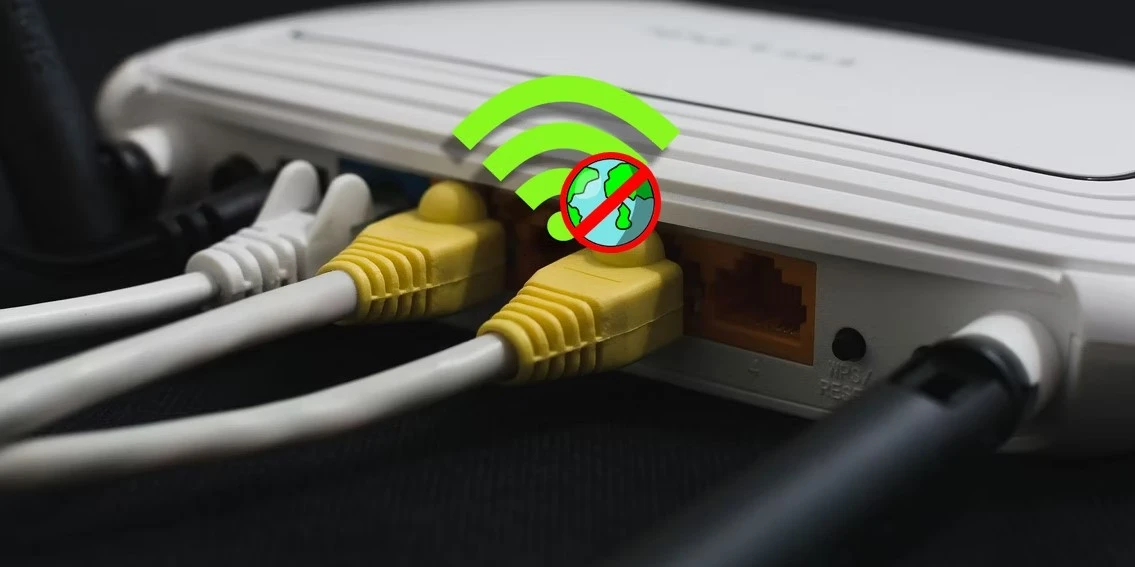
Are you seeing the annoying "Connected but no internet access" error on your Windows computer? Follow these steps when you have no internet connection.
Are you seeing the internet connection icon in Windows 10 or Windows 11 that declares you have no internet connection ? You may be wondering how to fix this frustrating Windows error.
We will show you the steps to follow when you have no internet connection but are still connected to Wi-Fi in Windows.
How to Fix "No Internet Access" Errors in Windows
Let us first quickly identify the steps to resolve "connected but no internet access" errors. We will then go into detail about each one:
- Confirm that other devices cannot connect either
- Restart your computer
- Restart your modem and router
- Disable any VPN connections
- Run the Windows Network Troubleshooter
- Check your IP address settings
- Check your ISP's status
- Try some Command Prompt commands
- Disable security software
- Update your wireless drivers
- Reset your network
What Does It Mean When You Have No Internet Connection?
Before proceeding, we should explain exactly what is happening on your network when you are connected to Wi-Fi but have no internet connection. To do so, it is necessary to explain some home networking basics.
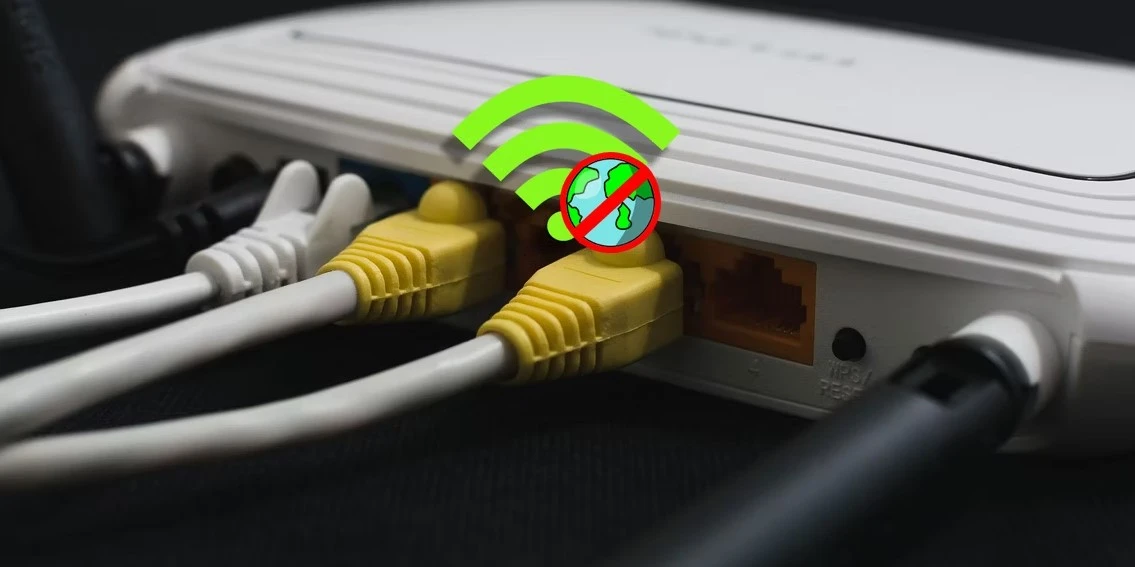
Wireless devices, such as your laptop, connect to your router. The router is a device that handles network connections for devices in your home. Your router is connected to a modem, which is a device that links traffic on your home network to the broader internet.
When you see error messages such as Connected, No Internet Access or Connected but No Internet on your computer, it means your computer is properly connected to the router but cannot access the internet. Conversely, if you see Not Connected, No Internet, or No Internet Connection messages, it means your computer is not connected to a router at all.
This gives you some clues about what the problem might be, as we will see below.
1. Confirm That Other Devices Cannot Connect Either
Before doing any troubleshooting, it is important to determine whether your computer is the only device without an internet connection. Grab your phone or another computer connected to your Wi-Fi network and check whether it connects to the internet properly — try streaming a video on YouTube or something similar to verify.
On many Android versions, you will see an X icon above the Wi-Fi icon in your status bar and notice that you are connected to your mobile network for data. iPhone and iPad users can visit Settings > Wi-Fi and check whether the No Internet Connection message appears under your network name.
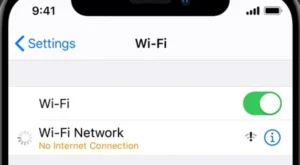
If your computer does not connect but others do, it is likely due to a misconfiguration on your computer only. But if you have no internet on every device, the problem lies with your network equipment, and you can therefore skip some of the PC-only steps below, as noted.
Before continuing, if the problem affects all your devices, you should run a quick test. Disconnect the Ethernet cable connecting your modem to your router and use it to connect your computer directly to the modem instead.
If you are able to connect to the internet through this setup, the problem lies with your router. If you continue through the following troubleshooting steps and do not find a solution to your problem, your router is likely faulty.
2. Restart Your Computer
This step is not necessary if your connection problem affects multiple devices.
As with many problems, restarting your computer is the first troubleshooting step you should try. If you are lucky, you can clear some temporary glitches by restarting, which will fix your network connection issue.
Most of this advice assumes you are using a Wi-Fi connection, as it tends to experience issues more often. However, if you connect to your router using an Ethernet cable, you should also try another cable at this point to make sure your cable is not defective.
3. Restart Your Modem and Router
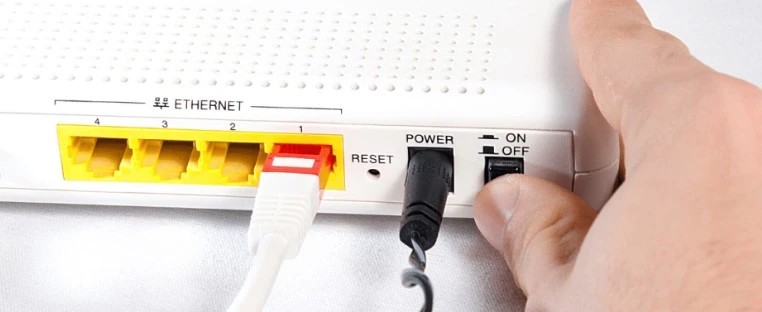
Since most network problems involve the modem and/or the router, restarting them next makes sense. While some routers offer a restart option through an interface, you do not necessarily need to do that. Simply pull the power plug from both devices and leave them unplugged for a few minutes — or use the physical power button if there is one.
Plug in the modem first, let it boot up, then plug your router back in. Wait a few minutes for everything to start up fully. While doing so, make sure the router and modem are working properly. If you do not see any lights on one of the devices, or the lights appear red or flash in an irregular pattern, you may have a bad piece of network hardware.
If your computer still says “no internet” after that, continue — your problem is more complex than a basic restart.
Note that you are simply restarting your devices, not resetting them. Resetting means returning the device to factory default settings; you do not need to do that yet!
4. Disable Any VPN Connections
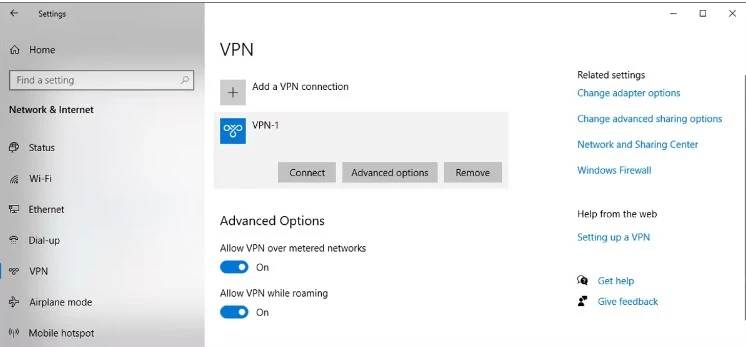
Using a VPN can provide many benefits, but it also adds a layer to your internet connection setup. As a result, what you think is a home network connection problem may actually be a problem with your VPN. Sometimes a VPN times out if you have been connected for a long time while your computer is in idle mode, or perhaps you are using an overloaded server that cannot handle your connection.
If you are running a VPN, whether through an app or a manual connection in Windows, disable it and try connecting to the internet again. If that does not solve the problem, keep the VPN turned off throughout the troubleshooting process to reduce the number of variables.
5. Run the Windows Network Troubleshooter
This step is not necessary if your connection problem affects multiple devices.
If you are having trouble only on your Windows PC, there is likely something wrong with the computer's network settings. Although the Windows Troubleshooter does not usually fix issues, it is worth trying before moving on to more advanced steps.
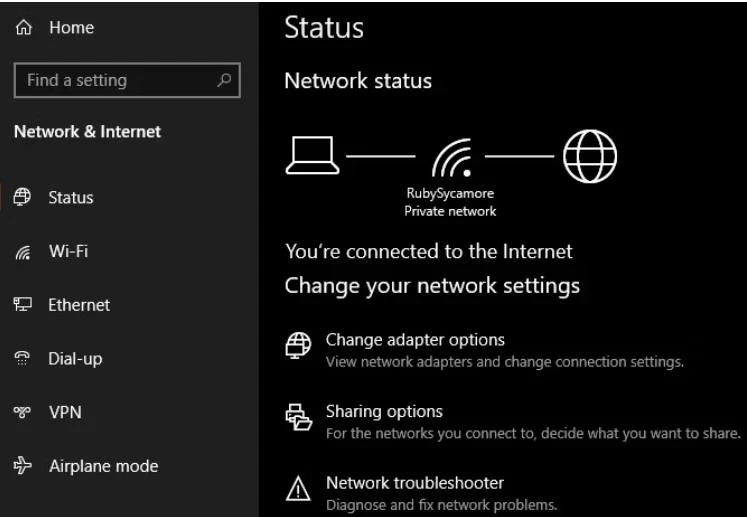
To access the Network Troubleshooter on Windows 10, visit Settings > Network & Internet > Status. Select Network Troubleshooter and follow the steps to see if Windows can correct the problem. In Windows 11, you will find this same tool at Settings > System > Troubleshoot > Other Troubleshooters > Internet Connections.
6. Check Your IP Address Settings
This step is not necessary if your connection problem affects multiple devices.
Next, you should follow one of the basic steps for diagnosing network problems: making sure your computer has a valid IP address. On most home networks, under normal circumstances, the router assigns an address to devices when they connect. If your computer's IP settings are incorrect, it could cause a "no internet access" problem or even a "Wi-Fi doesn't have a valid IP configuration" error.
Review IP Settings on Windows 10
When using Windows 10, go back to Settings > Network & Internet > Status. Click the Change adapter options entry, then double-click the connection you are using.
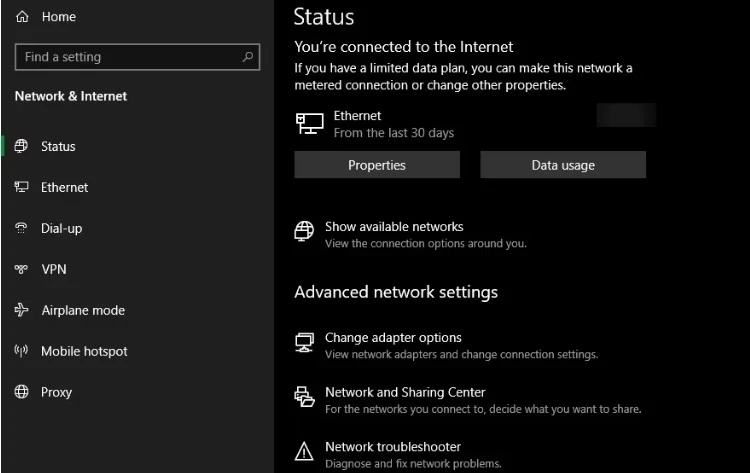
Once a window opens containing information about your connection, click the "Properties" button. Find Internet Protocol Version 4 in the list and double-click it.
There, make sure you are obtaining an IP address automatically and that Obtain DNS server address automatically is selected. Manually setting an IP address is for advanced users; chances are if you entered something here, it is invalid.
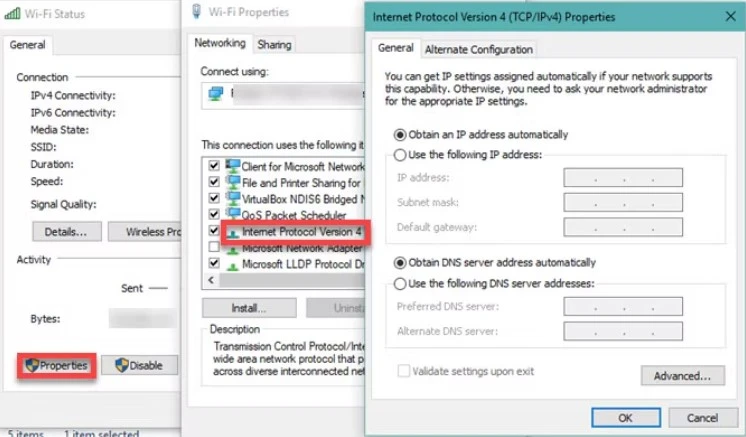
Click “OK” after telling both to use automatic values, then try connecting to the internet again.
Check IP Options on Windows 11
If you are using Windows 11, open Settings again and navigate to Network & Internet. Click Advanced network settings at the bottom of the list, then select the network connection you are using. In the expanded menu, choose View additional properties at the bottom.
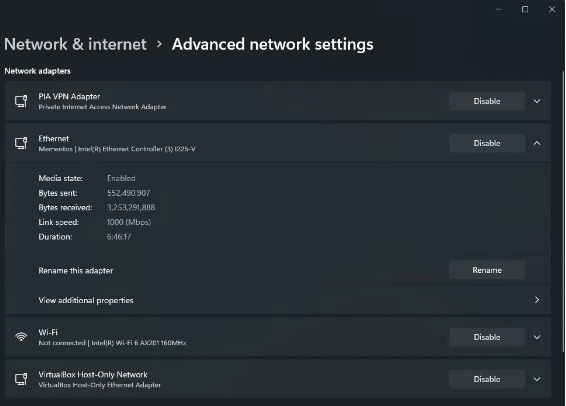
In the resulting menu, make sure both IP assignment and DNS server assignment are set to Automatic (DHCP). If not, click the Edit button next to them and change them to Automatic. Once confirmed, try connecting again.
7. Check Your ISP's Status
At this point, if you cannot connect any devices to the internet, it is worth checking whether your Internet Service Provider (ISP) is experiencing a problem. Although this is rare, it could explain why internet access is not available at all.
Use your phone's data connection to find out whether Comcast, Verizon, or whoever provides service in your area has reported an outage. DownDetector is a great site for this purpose. A quick search on Google or Twitter can reveal whether others are experiencing problems too.
8. Try Network Command Prompt Commands
This step is not necessary if your connection problem affects multiple devices.
Windows offers several networking commands in the Command Prompt. You should run a few of them if you are still unable to access the internet in Windows at this point. To do so, type cmd in the Start menu, then right-click it and choose Run as administrator to open an elevated Command Prompt window.
To reset some files that Windows keeps for internet access, use these two commands:
netsh winsock reset
netsh int ip reset
If that does not work, try releasing your computer's IP address and getting a new one from the router using these two commands, one after the other:
ipconfig /release
ipconfig /renew
Finally, refresh your computer's DNS settings using this command:
ipconfig /flushdns
It does not hurt to restart your computer again at this point. If you are still unable to access the internet, there are a few more steps you can try.
9. Disable Security Software
This step is not necessary if your connection problem affects multiple devices.
Another uncommon but plausible scenario is that you have some security software on your computer that is blocking internet access. Avast and other antivirus suites have had problems in the past where broken updates block certain websites, or even the entire internet, for no good reason.
Disable any third-party antivirus apps you may have installed and see if your connection returns. If it does, you may need to change the settings in your antivirus app or consider using an alternative solution.
While we are on the topic of security, it is worth running a malware scan using an app such as Malwarebytes. Malware can cause your internet connection to be cut off.
10. Update Your Wireless Drivers
This step is not necessary if your connection problem affects multiple devices.
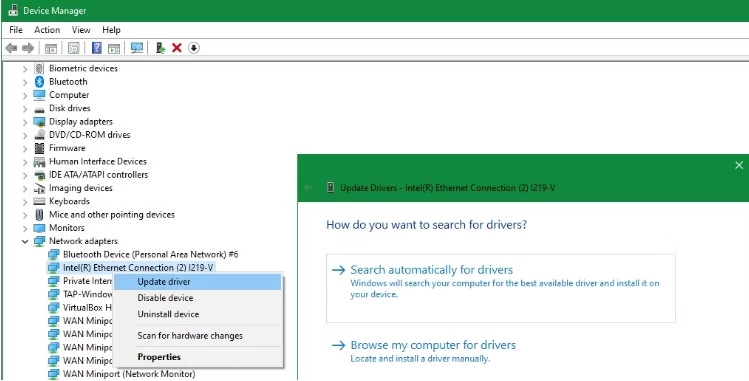
Normally, you do not need to update most of your computer's drivers, as doing so can cause more problems than it is worth. But if you are still experiencing this network connection problem, you should look for driver updates for your computer's wireless chip.
If you have a manufacturer update app (such as HP Support Assistant or Lenovo System Update) installed on your computer, open it and check for wireless driver updates. Otherwise, follow our guide to manually updating Windows drivers.
11. Reset Your Network
At this point, if you have followed all these steps and are still experiencing the “no internet connection but connected” problem, there is not much you can do other than resetting your network settings.
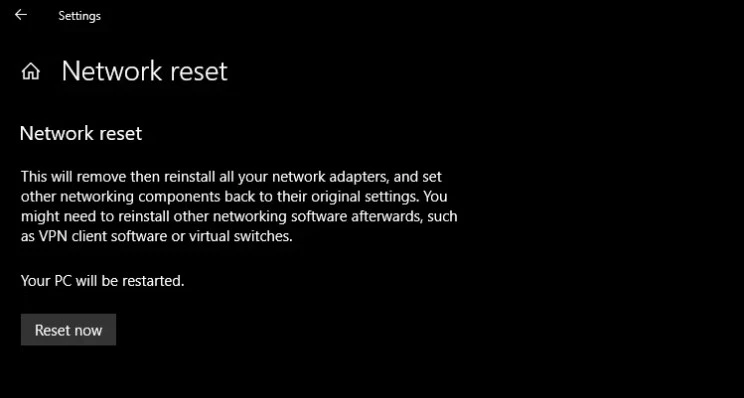
If your Windows PC is the only device you cannot connect with, you can reset the network configuration on Windows 10 by visiting Settings > Network & Internet > Status. Click the Network reset text at the bottom of the screen, then Reset now. On Windows 11, go to Settings > Network & Internet, then click Advanced network settings and choose Network reset.
Following the prompts in these menus will completely remove all network adapters and reset all network settings to their defaults. You will have to set everything up again, including VPN software, but this may be the fix you need.
No Longer Fear "Connected but No Internet"
Hopefully you will not have to reset anything to factory settings to fix your connection problem. One of the earlier steps should take care of it, but there is no perfect formula for network issues. If you have followed all the steps, you have confirmed that your devices are set up correctly and you have nothing blocking the connection.
It is possible to jump into more comprehensive troubleshooting if you wish. However, it may be more helpful to contact a network-savvy friend for additional assistance instead.
And with that, my friend, we have successfully completed the mission 
With greetings from the #Ezznology team
And find what interests you at #our store
To subscribe to our newsletter on Google News click here 👇👇

Or scan the code

You may also be interested in:
A way to recover deleted WhatsApp messages even if there is no backup #whatsapp
200 million emails leaked from Twitter users online #twitter_disaster
What is cloud storage? what-is-cloud-storage?
What is an API? How does an API work? And what is an API used for?
What is Platform as a Service (PaaS)?
💬 Comments 0
No comments yet — be the first to comment!