Live Transcribe – along with other apps like Look to Speak – is a useful app that makes it easy for deaf people to engage in conversation. You can also use it to get real-time transcripts of a conversation. Setting it up is a simple process, and there are many settings adjustments one can make to get the most out of the app. Here is everything you need to know to get started using it.
Activating Live Transcribe
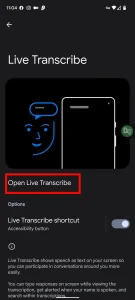
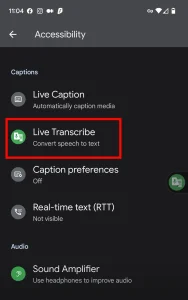
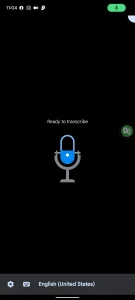
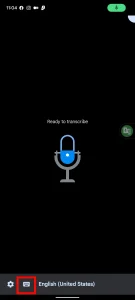
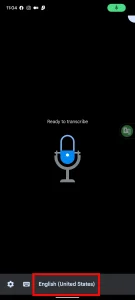
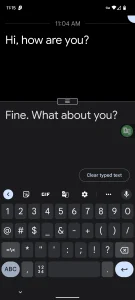

The app will automatically capture any speech in the selected language. You can tell it is ready when you see "Ready to transcribe" in the middle of the screen. Just hold your phone close to the speaker, and it should capture what is said with great accuracy. However, enunciation matters, and results may not be 100% accurate if the speaker talks quietly or has a neurological condition affecting speech. People living with conditions that affect speech should check out Google’s Project Relate; the project helps people with speech disabilities to communicate and interact with others more easily using Google Assistant.
If you want to reply via text message in a conversation, tap the keyboard icon at the bottom of the screen. A text window will appear, and you can type your reply. Text replies are not added to the transcript, and you will need to clear the text each time you want to reply.
If you want to find something specific in the transcript, tap the gear icon in the bottom left corner. A submenu should appear, and you can use the search bar at the top of it to search for anything in the transcript.
Change and Download Languages
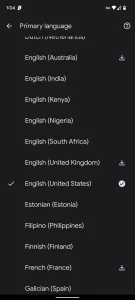
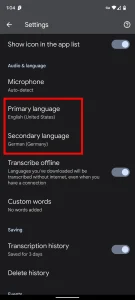
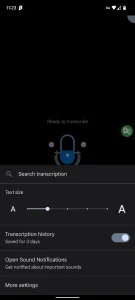
There are 80 languages available in Live Transcribe (including local dialects for some of the more prominent languages). Users can choose a primary language and a secondary language. To change language settings:
- Tap the gear icon in the bottom left corner of the app.
- Click "More Settings" in the submenu that appears.
- Select "Primary Language" or "Secondary Language", depending on what you want to change.
- Scroll through the list and select the language you want to use.
Some languages can be downloaded for offline use. To download a language, tap the downward arrow next to the desired language. The selection is limited for now, but most mainstream languages are downloadable.
On the app’s main screen, you can quickly switch between your primary and secondary language by tapping the language at the bottom of the screen.
Change Settings
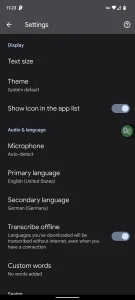
There are a variety of other settings that can be adjusted in Live Transcribe. You can access all of these through the gear icon and the "More Settings" option. Here is a breakdown of most of them and what you can change:
- Text size: Adjust the transcript text size for easier reading.
- Transcript history: Live Transcribe will keep transcripts for 24 hours, but after that, the conversation will be automatically deleted. Toggle the transcript history to On to keep transcriptions for up to 3 days.
- Open sound notifications: Live Transcribe will also capture important sounds, such as a doorbell or phone ringing. You can manage these sounds and know when they occur in these settings.
- Theme: Adjust between light, dark, or system default mode.
- Offline transcription: Toggle if you want to be able to transcribe without an internet connection. You need to download the required language to use this feature.
- Custom words: You can add unusual words here. This is supposed to improve Live Transcribe’s ability to capture them accurately.
- Delete history: You can delete the transcript history sooner by selecting this option.
- Vibrate when name is spoken: You can add your name and others’ names to this section, and the phone will vibrate if it detects that name during transcription.
- Vibrate when speech resumes after a pause: The phone will vibrate if speaking resumes after a pause of more than 10 seconds.
- Show sound labels: The transcript will display sound descriptions such as laughter and applause, similar to closed captions.
Add an External Microphone
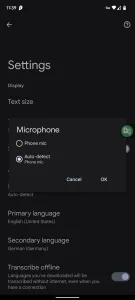
If you want to maximize transcription quality, adding an external microphone is a great way to improve clarity. Adding one for use in Live Transcribe is quite simple as well.
- Connect the external microphone to your phone.
- Depending on the type of microphone, you may need an adapter for this.
- From the app’s main screen, tap the gear icon and select "More Settings".
- Under "Audio & Language", select Microphone.
- Tap the microphone you want to use.
There should be two options. One should be listed as "Phone mic" and the other should list the external microphone. By default, "Auto detect" is enabled.