
How to Undo a Sent Email in Outlook – How to Recall an Email After It Has Been Delivered to the Recipient

Many times we feel that we rushed into sending a message via email
or there were modifications that needed to be attached to that message,
whether they were additions or certain changes
In this article we will discover together a feature that may be the most important for you in one respect, or a disaster preventer,
in another respect. So let us go to explaining the lesson and welcome, my friend,
Recall or Replace an Email Message You Sent
To Recall and Replace a Message
- In the folder pane on the left of the Outlook window, choose the Sent Items folder.
- Open the message you want to recall. You must double-click to open the message. Selecting the message so it appears in the reading pane won't allow you to recall the message.
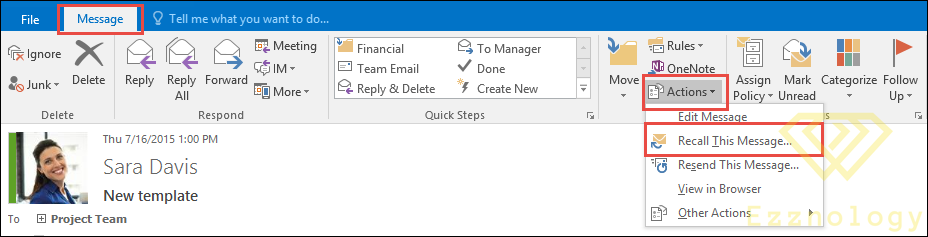
- If you have the Classic Ribbon, from the Message tab, select Actions > Recall This Message.
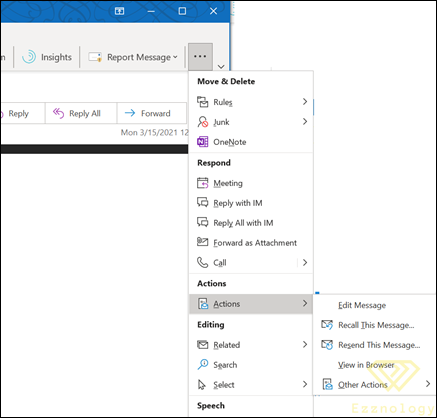
If you have the Simplified Ribbon, select the Message tab and then select More Commands (...). Point to Actions and select Recall This Message.
-
Notes:
- If you don't see the Recall This Message command, you may not have an Exchange account, or the feature may not be available within your organization.
- You cannot recall a message that is protected by Azure Information Protection.
- You cannot recall a message in Outlook on the web.
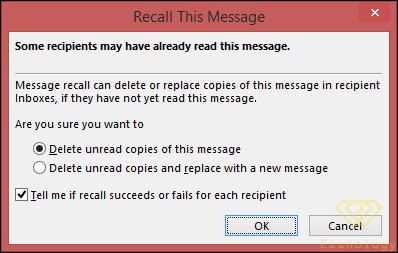
- Click Delete unread copies of this message or Delete unread copies and replace with a new message, and then click OK.
- If you are sending a replacement message, compose the message, and then click Send.
To Verify the Recall
The success or failure of a message recall depends on the recipients' settings in Outlook. The following table shows five scenarios:
| Action | Result |
|---|---|
| You send a message to someone. You recall the original message and replace it with a new one.
On the recipient's computer, under Tracking, the Automatically process meeting requests and responses to meeting requests and polls check box is selected. Note: To view this setting, File > Options > Mail. Scroll down to the Tracking section. |
Both the original message and the recall message are received in the recipient's inbox.
Assuming the original message has not been read, the original message is deleted and the recipient is informed that you, the sender, have deleted the message from their mailbox.
Note: If the original message is marked as read (viewing in the reading pane does not count as read in this scenario) when the recall message is processed, the recipient is informed that you, the sender, want to delete the message. However, the message remains in the recipient's Outlook folder.
|
| You send a message to someone. You recall the original message and replace it with a new one.
On the recipient's computer, under Tracking, the Automatically process meeting requests and responses to meeting requests and polls check box is not selected. Note: To view this setting, File > Options > Mail. Scroll down to the Tracking section. |
Both the original message and the recall message are received in the recipient's inbox.
On the recipient's computer, one of the following results occurs:
Note: If the original message is marked as read (viewing in the reading pane does not count as read in this scenario) when the recall message is processed, the recipient is informed that you, the sender, want to delete the message. However, the message remains in the recipient's Outlook folder.
|
| You send a message to someone. You recall the original message and replace it with a new one.
On the recipient's computer, either by a rule or by an action of the recipient, the original message is moved from the inbox to another folder, and the recall message remains in the inbox (or is also moved to another folder). |
If the recall message and the original message are in different folders, the recipient receives a message indicating that the recall attempt failed. This happens regardless of Outlook configurations and message read status.
Both the original message and the new message are available to the recipient. |
| You send a message to someone. You recall the original message and replace it with a new one.
On the recipient's computer, either by a rule or by an action of the recipient, both messages are moved to the same folder. This results in behavior similar to what occurs when Outlook is not configured to automatically process messages. |
On the recipient's computer, one of the following results occurs:
|
| You send a message to a public folder. You recall the original message and replace it with a new one. | One of the following results occurs:
If a user who has any other rights to the public folder opens the recall message, the recall fails, and the user receives a message indicating that the recall failed. Both old and new messages remain in the public folder.
|
You might also be interested in
A Treasure in Every Sense – A Tool to Translate Anything Anywhere in Any Language to Arabic: Ejoy English
The Concept of Cybersecurity and the Standards for Properly Applying It in Companies and Institutions to Avoid Cyberattacks
A Strong Password Is Your First Line of Defense Against Hacking and Hacker Attacks