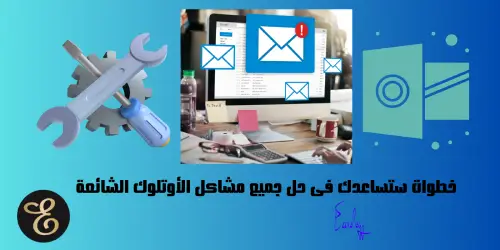
Steps That Will Help You Fix All Common Outlook Problems How to Fix Common Outlook Problems
No matter how well add-ins are written (even the Outlook program itself), some problems will always appear in Outlook that may not go away or may not be related to add-ins at all. You can search the internet for how to fix your Outlook problem, but sometimes, the suggestions provided may not work in a particular case. So, we have prepared this list of general steps you can try to solve your Outlook problem. Read on to discover how to fix common Outlook problems.
1. Start Outlook in Safe Mode
Did you know that you can start Outlook without any add-ins? This is known as “Safe Mode”. You can open Outlook in Safe Mode, which will disable all add-ins (a good step to start with). Follow these instructions: Open Outlook in Safe Mode.
If Outlook works fine in Safe Mode, you can start uninstalling add-ins one by one (at least temporarily). To uninstall, you can go to Control Panel… Programs and Features, then choose “Remove” (or you can temporarily disable them via the registry at HKCU\Software\Microsoft\Office\Outlook\AddIns{add-in name} – then set LoadBehavior to 0 to disable it, and 3 to enable it).
Finally, if you can identify a specific add-in, you may be able to reinstall the problematic add-in in a different order (provided you have more than one add-in you can install – some add-ins are installed by Microsoft when Outlook is installed). One of our corporate customers reported that changing the installation order solved a problem with the right-click menu in our “Reply to All” add-in in Outlook.
2. Run the Microsoft Support and Recovery Assistant
Microsoft has its own tool that automatically scans and corrects Office problems when things go wrong. You can read more about it and then run the Microsoft Support and Recovery Assistant to see if it helps you. This tool can automatically diagnose problems, perform troubleshooting, and fix issues related to Outlook.
Note that the link above is for desktop Outlook on Windows. You can find a more general version that can fix Office, Microsoft 365, and other Outlook problems [here].
The Inbox Repair tool (scanpst.exe) works on both the Outlook Personal Folders file (.pst) and the Outlook Offline Storage file (.ost). scanpst.exe is installed when Microsoft Outlook is installed and is located in the folder: drive:\Program Files\Common Files\System\MSMAPI\LocaleID – where LocaleID represents the language identifier (LCID) of the Microsoft Office installation. For English – United States, the LCID is 1033.
Before starting, restart Outlook and try to reproduce the problem. You can find the full instructions on how to repair Outlook data files here.
3. Run the Inbox Repair Tool
The Inbox Repair tool (scanpst.exe) works on both the Outlook Personal Folders file (.pst) and the Outlook Offline Storage file (.ost). scanpst.exe is installed when Microsoft Outlook is installed and is located in the folder: drive:\Program Files\Common Files\System\MSMAPI\LocaleID – where LocaleID represents the language identifier (LCID) of the Microsoft Office installation. For English – United States, the LCID is 1033.
Before starting, restart Outlook and try to reproduce the problem. You can find the full instructions on how to repair Outlook data files here.
4. Repair Office
Go to Control Panel and then to “Programs and Features”. Find Microsoft Office in the list and click “Change”:
Click “Change”, then choose the Repair option.
You can find the full instructions [here]. When finished, restart Outlook and try to reproduce the problem.
5. Remove Outlook from the Startup Folder
If you have an Outlook shortcut in the Startup folder, remove that shortcut. Then, restart Outlook and try to reproduce the problem.
6. Stop the Send/Receive Action When Exiting Outlook
In Outlook, go to File… Options… Advanced. Click the Send/Receive button and select “All Accounts”. Then uncheck the option that says “Perform an automatic send/receive when exiting”:
This option can be useful if you always have to wait for Outlook to rebuild its data file upon restart.
Then, restart Outlook and try to reproduce the problem.
7. Update All Add-ins
Updating all add-ins may help, especially if the problem you are facing started suddenly without an obvious cause (such as a service pack or a Windows update, and the add-in vendor may already have a newer version).
8. Try on Another Device
Do you have another device on which you can try to reproduce the problem, preferably with a similar configuration to the device experiencing the problem? Identifying patterns helps in diagnosing what the problem might be.
9. Use the Event Viewer
Make sure to review the Windows Application event logs for any clues, as Outlook (and all Office applications) write their notifications, warnings, and errors there. To do this, go to Start and type “eventvwr.exe”. Wait for it to load, as it may take a few seconds. Then, look in Windows Logs… Application, and check the Source column for events originating from “Outlook”:
Make sure to look at the events related to Outlook exiting and when it was restarted. Both events may contain useful information.
There is nothing specific to warn you about, as there is a lot of diagnostic and informational data there, but reading the entries may lead you to a clue about what is wrong. Note that you can sort the results by clicking on the Source column.
10. Reinstall Office Completely
This step is not something you should take lightly, but sometimes it is necessary. Similar to the previous suggestion of repairing Office (see #3 Repair Microsoft Office above), follow the same steps but choose the Uninstall option.
Be aware that you may need the product key if you received one.
11. Create a New Outlook Profile
This step comes at the end of the list because it restarts your mailbox, and Outlook will need to download all your emails again (depending on your connection mode). You can find the instructions for creating a new Outlook profile [here].
And with these steps, dear friends, God willing, the problem will most likely have been solved in one of the steps mentioned
And we are fully ready to help — contact us for support
And here, my dear friend, we have successfully completed the mission ✌
Do not forget your brothers in Palestine in your prayers
Best regards from the #Ezznology team
Find what interests you on 👈#Our Store
And you can become a member of our family by joining the Telegram group from👈here
Or the Facebook group from👈here


Others were also interested in:
The Feature of Organizing WhatsApp Messages According to Separate Lists
How to Create Your Resume on Wikipedia
The 6 Most Important Methods and Tips for Managing Change Effectively
What is Change Management | Change Management
What Does Clustering Servers Mean?
Ezznology عز التقنية
Writer at Ezznology عز التقنية — sharing the best tech articles and tutorials.
Rate this article
💬 Comments 0
No comments yet — be the first to comment!