The 4 Most Important Free Screenshot Tools for Windows

The 4 Most Important Free Screenshot Tools for Windows
Taking a screenshot is a basic daily task for most of us, and the traditional approach is to capture the screen by pressing the Print Screen button, then opening Paint, pasting the image, cropping the desired portion, resizing it to your preference, editing it, and saving it again to your computer.
The 4 Best Screenshot Tools for Windows 10
Here, I would like to clarify any confusion you may have — specifically that screen recording tools and screenshot tools are different things.
How do you take screenshots on Windows 10?
If we are talking specifically about Windows 10 (and older versions), there are three different tools that can be used to capture screenshots on a Windows computer –
1- Windows 10 Print Screen Tool
You probably know this well, but I still recommend it — because as of 2019, the easiest way to take a screenshot on Windows 10 is to use the Print Screen tool, which has a Print Screen button on almost every laptop and desktop. Apple, but simply pressing the Print Screen key won't do anything on your device.
Where are screenshots saved?
When you take a screenshot using the method described above, the screen will flash for a second and then return to normal. Screenshots you capture are saved in File Explorer > Pictures > Screenshots. If you can't use the Print key to take a screenshot for some reason, there are a few things you can try.
Make sure no third-party snipping tools are running on your device
Update your keyboard driver
On some computers, you need to press a function key to use the Print Screen key.
Try updating your version of Windows 10.
2- Windows 10 Snip & Sketch Tool
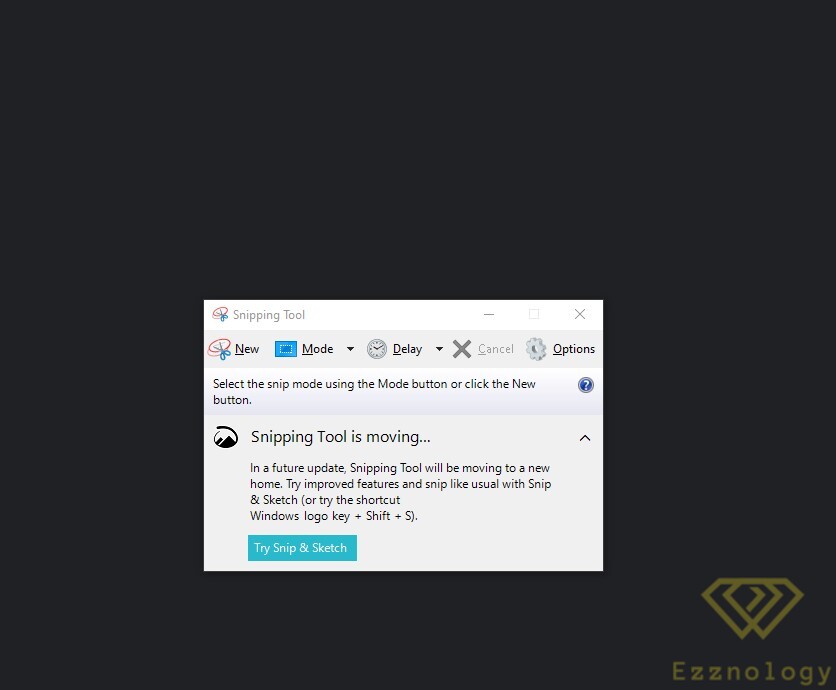
The built-in screenshot tool in Windows 10 is called Snip & Sketch, and it is an alternative to the Windows 10 screenshot tool you may have been using for years.
Snip & Sketch offers various screenshot options, including full-screen capture, window capture, and freeform capture. Apart from its appearance, one of its advantages over the built-in Windows 10 screenshot tool is that you can resize rectangular screenshots — something you cannot do with the Print Screen option or even the Snipping Tool — and you get delayed screenshots with options for up to 10 seconds. After capturing your screen, you can annotate and draw on it, as well as share the final result directly within the Snip & Sketch app itself.
To download the tool

3- Lightshot
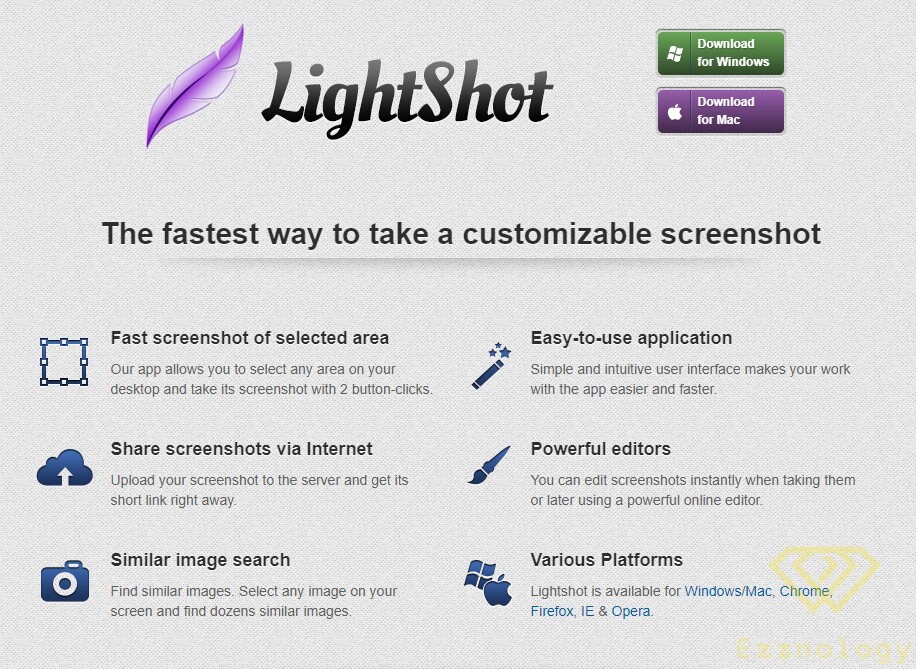
I used this screenshot app on Windows 10 for a few months, but then I reset my computer and forgot to reinstall it. Nevertheless, it is free and offers many useful features — you can access them by pressing the Open Lightshot Print Screen key. You don't need to use any shortcuts. Now, in case you're wondering, the Windows 10 screenshot shortcut still works alongside the Print Screen feature.
To download the program for Windows
Or from here
To download the program for Mac
4- ShareX
Pros
- +Offers screen capture and recording
- +Many sharing options
- +Scrolling page capture
Cons
- –Can be fiddly to configure
- –No game capture or recording
- –Unattractive interface
Taking a screenshot in Windows can be as simple as pressing the Prt Scr key and pasting the contents of your clipboard into an image editor. But there will be occasions when you want to do something more involved — like capturing just part of your screen, or sharing your screenshots on the web — and that's when a third-party screen recorder comes in handy.
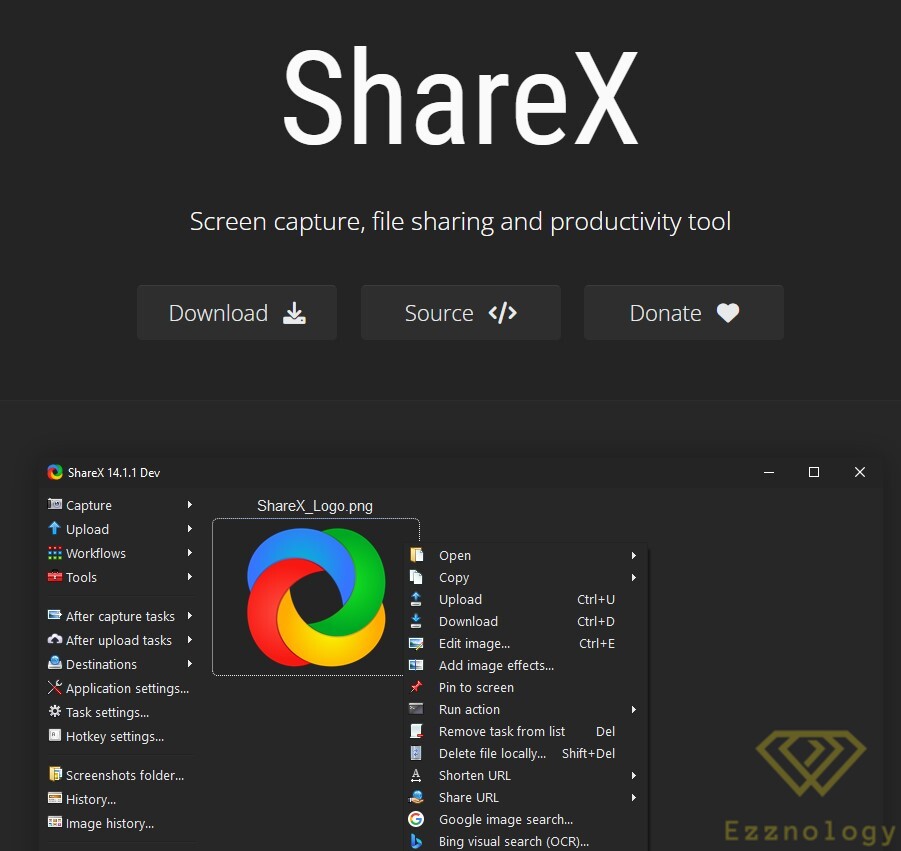
ShareX offers a range of screenshot options: full screen, window, region, scrolling capture, and more. You can choose whether to include the cursor in screenshots, set a timer to delay the capture, and even perform OCR on text. You can also record on-screen activity as a video or an animated GIF.
But where ShareX really shines — and where it gets its name — is in the sharing options available. Screenshots and recordings can be uploaded to a range of cloud services, including image hosting and general online storage, and even social media. There's a lot on offer with ShareX, including an impressive image editor for modifying screenshots before use.
You can download the app from here
Or from here
You may also be interested in: